
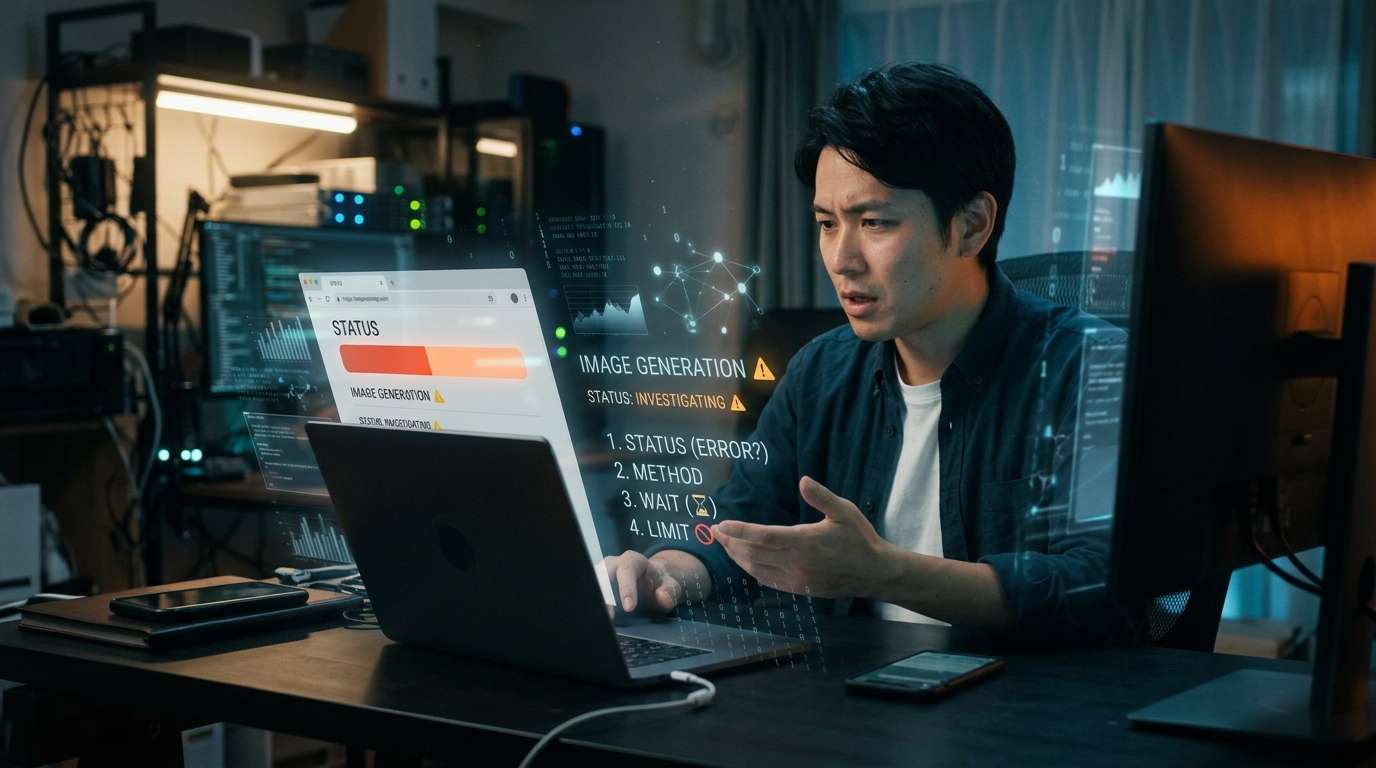
When image generation isn’t working properly in ChatGPT, there are a few things to check before suspecting your device or settings.
OpenAI publishes image-generation service status on its status page, and its help center also explains how to create images, how long processing can take, and the limits for the Free plan. This article lays out what to check, in order: outages, where to start, wait times, and usage limits.
Check service status before looking at your device
No image appears. In that situation, it’s tempting to start with fixes on your end, like refreshing the browser or reinstalling the app. But if image generation itself is experiencing problems, tweaking settings will get you nowhere.
OpenAI’s status page lists the operational status of “Image Generation.” At the time of our check, it showed an issue affecting image generation. OpenAI also publishes individual incident pages and past incident history, so you can look back at what happened and when.
However, this information changes constantly. Be careful not to mistake a record of a past outage for a current one. Make a habit of checking the date and time as well as the status shown on the page to avoid wasting time troubleshooting.
Make sure you’re using the right way to start creating images
If there are no service issues, the next step is to check how you’re using the feature. Official help says you can create images in ChatGPT either by asking for one in a conversation or by selecting “Images” from the menu.
ChatGPT Images is available on all plans and works on the web, iOS, and Android. It seems unlikely that you can’t use it because of your plan or device. First, check that you’re accessing the feature through the right entry point on the screen you have open.
Image generation can take several minutes
If you’re using the right entry point but the screen doesn’t seem to be responding, waiting a little is another option. According to the official FAQ, image generation can take several minutes, depending on the complexity of the request.
It can be tempting to submit your request repeatedly when the response seems slow, but try to resist. Sometimes the image appears simply by waiting for the process to finish.
Free plan users should be aware of a separate usage limit
If you’re on the Free plan, the usage limit is another thing to check. Image generation has a separate limit from regular text chats. OpenAI says ChatGPT will notify you when you reach the limit, and you’ll need to wait a while before using the feature again.
You may still be able to chat normally by text while being unable to create images. In that case, the separate limit may be the reason. Check the notification on your screen for the specific number of uses.
A quick-reference table
Here’s a summary of where to check and what to do next:
【Quick-reference checklist】
1. Service outage / “Image Generation” on OpenAI’s status page / If an issue is reported, wait for service to be restored
2. Image-generation entry point / Ask in a conversation or select “Images” from the menu / Select the correct feature
3. Generation time / Processing status / Wait a few minutes; don’t repeatedly resubmit
4. Usage limit / Notification shown on the Free plan / Wait a while before trying again
A problem creating images isn’t always caused by something you did on your device. Checking from the broader service situation down can help you find the cause without getting lost.


Comments